At NDepend, we’ve built an MCP Server in C# and open-sourced it here: https://github.com/ndepend/NDepend.MCP.Server
It leverages both the NDepend.API and the ModelContextProtocol NuGet package , which has just reached version 1.0.0.
This marks the beginning of our journey to combine AI with C# static code analysis — already delivering capabilities that go beyond what AI analysis or static analysis can achieve on their own.
This post shares what we learned along the way. Our goal is to make it a go-to tutorial for developers building an MCP server with C#. Since our server is open source, you can also reuse parts of its code as a foundation for your own architecture.
The first half of this post introduces MCP—how it works, its benefits, and why you’d want to use it—especially since MCP is often misunderstood. After that, we dive into the code from the section Anatomy of an MCP Tool in C#.
We’ve also produced a 35-minute video that showcases the NDepend MCP Server in action and walks through many of the ideas discussed in this post.
Why MCP?
The Model Context Protocol (MCP) is an open standard introduced in November 2024 by Anthropic. It lets AI assistants securely connect to external data sources and tools.
An MCP server is essentially a collection of tools and resources. Building MCP servers in C# lets developers use the .NET ecosystem’s strong libraries, type safety, and performance to create seamless integrations with AI assistants.
MCP addresses a key challenge: providing a standardized, secure way for AI assistants to access external functionality without custom integrations for every tool, reducing fragmentation and duplicated effort.
Key reasons to use MCP:
- Standardization – One protocol works across multiple AI platforms
- Security – User data stays local; the AI never sees credentials
- Simplicity – Servers expose tools as simple functions with type-safe schemas
- Ecosystem – Leverage existing MCP clients and tools from the community
How It Works?
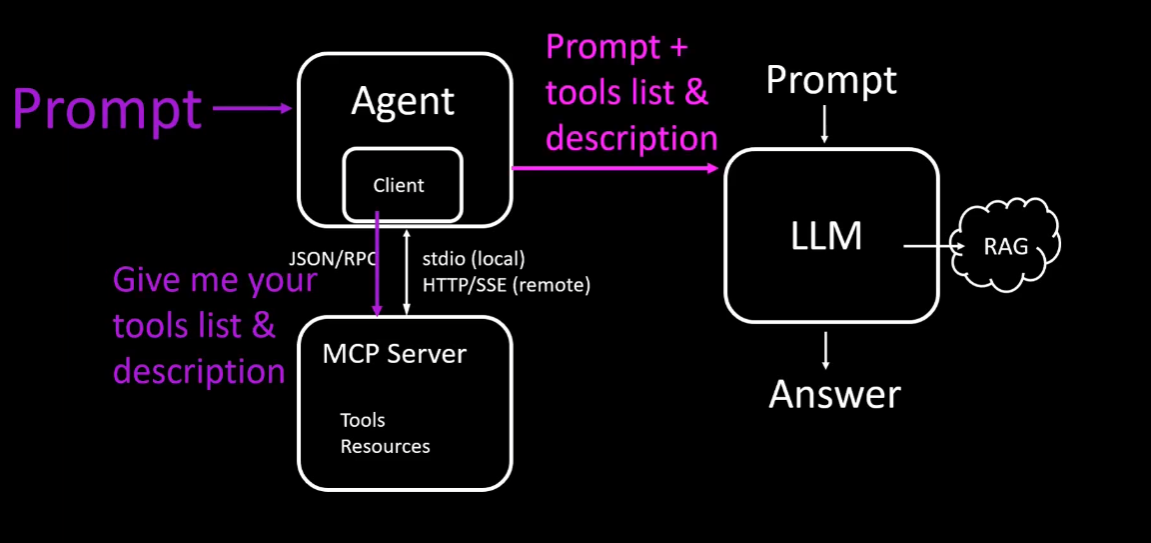
MCP uses a client-server architecture with JSON-RPC communication over standard input/output (stdio local) or over HTTP Server-Sent Events (SSE remote). Server-Sent Events (SSE) is a web technology that enables a server to push real-time, unidirectional updates to a client over a single HTTP connection. It is ideal for scenarios where the client needs to receive updates automatically
Here’s the flow:
1. Discovery – The AI agent’s MCP client connects to your server:
- stdio mode: The MCP client launches your server process locally as a subprocess
- HTTP SSE mode: The MCP client connects to your server remotely over HTTP
- In both cases, the client discovers available tools by calling the
tools/listendpoint
2. Decision – When a user submits a request:
- The AI agent sends the user’s request along with all available MCP tool definitions to the LLM
- The LLM analyzes this extended prompt and decides whether to invoke one or more MCP tools and with which parameters. This step is the cornerstone of MCP: it leverages LLM intelligence to generate the plan that best addresses a given request.
3. Invocation – The MCP client executes the LLM’s plan:
- Sends
tools/callrequests with the specified parameters to your server - May invoke multiple tools in parallel or in sequence based on the LLM’s reasoning
4. Execution – Your server processes each request:
- Accesses local resources, databases, APIs, or files
- Performs the requested operation
- Returns structured results to the MCP client
5. Response – The AI agent receives the tool results:
- Structured data is sent back to the LLM along with the conversation context
- The LLM may use this data to invoke additional tools or formulate a final response
- Results are incorporated into the user-facing response
The section at 3:16 in our video illustrates all of this through a 2 minutes animation.
Benefits
Let’s explore the advantages of the NDepend MCP Server compared to using an AI coding assistant like GitHub Copilot on its own.
- Objective: The data obtained from code by NDepend (metrics, dependencies, issues, coverage, trend…) are unbiased. There are no hallucinations from the LLM.
- Fast: Through two decades of development we made NDepend very fast to scale on the large code bases of our users. In the video demo, asking for less maintainable methods in the NodaTime solution takes two minutes with the agent alone, versus a second with our MCP server.
- Cost-Effective: It uses fewer LLM tokens, reducing operational costs. More on LLM token consumption later.
- Full Scope: While the LLM analysis to list poorly maintainable methods might miss some occurrences, the MCP server provides complete coverage.
- Privacy: None of your code is ever sent to the LLM. Only the NDepend MCP server sees your code, and it runs entirely on your premises.
These benefits are inherent to all MCP servers: MCP servers provide objective, factual data from trusted sources rather than LLM guesses, execute tasks faster through specialized tools, reduce token usage by delivering pre-processed results, query entire datasets with full precision, and keep sensitive information local, sharing only queries and results with the LLM.
Guide the LLM to Do More Than API Queries
Before diving into code and design, let’s consider why you might want an MCP Server. Is it just to let users query your product’s API in natural language? Think bigger. With an MCP Server, you can guide LLM intelligence to accomplish goals that were previously impossible.
For example, with the NDepend MCP Server, we have tools to query our product data. You could ask which methods in a solution are the least maintainable—our ndepend-search-code-metrics tool can handle the query. The LLM fills in its threshold parameters to find methods with a maintainability index below 50.
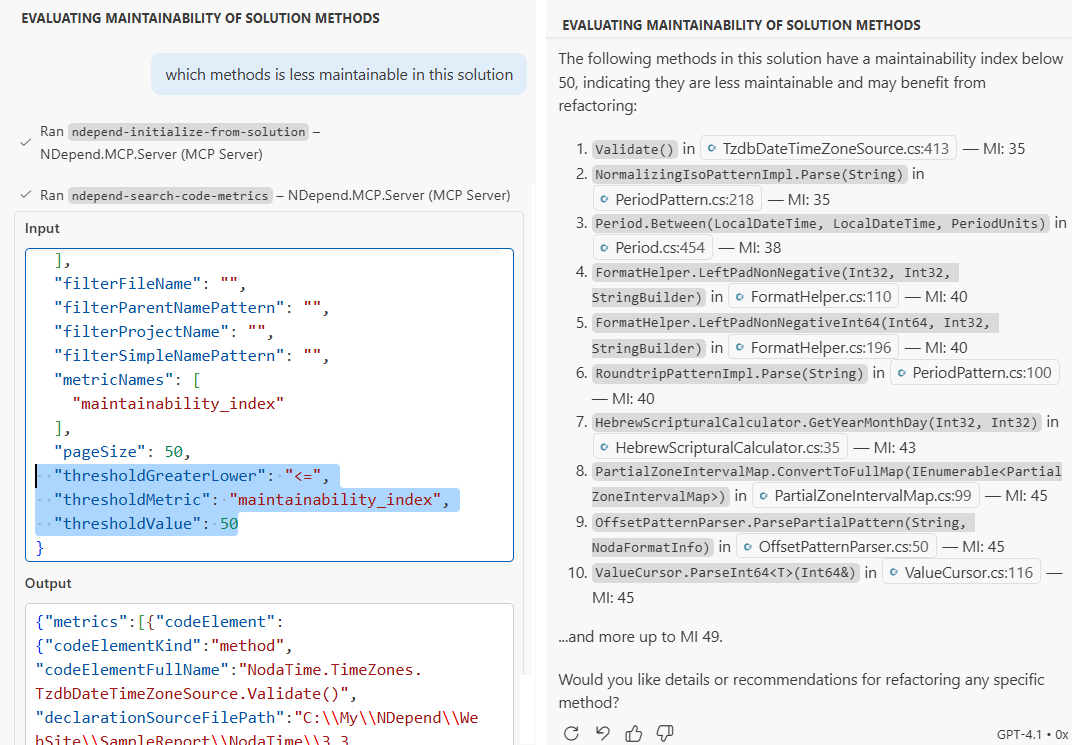
This is essentially calling a product API via natural language—and it works remarkably well. But we also envisioned scenarios where the rich data provided by our MCP server could guide the LLM even further, enabling operations that would otherwise be impossible.
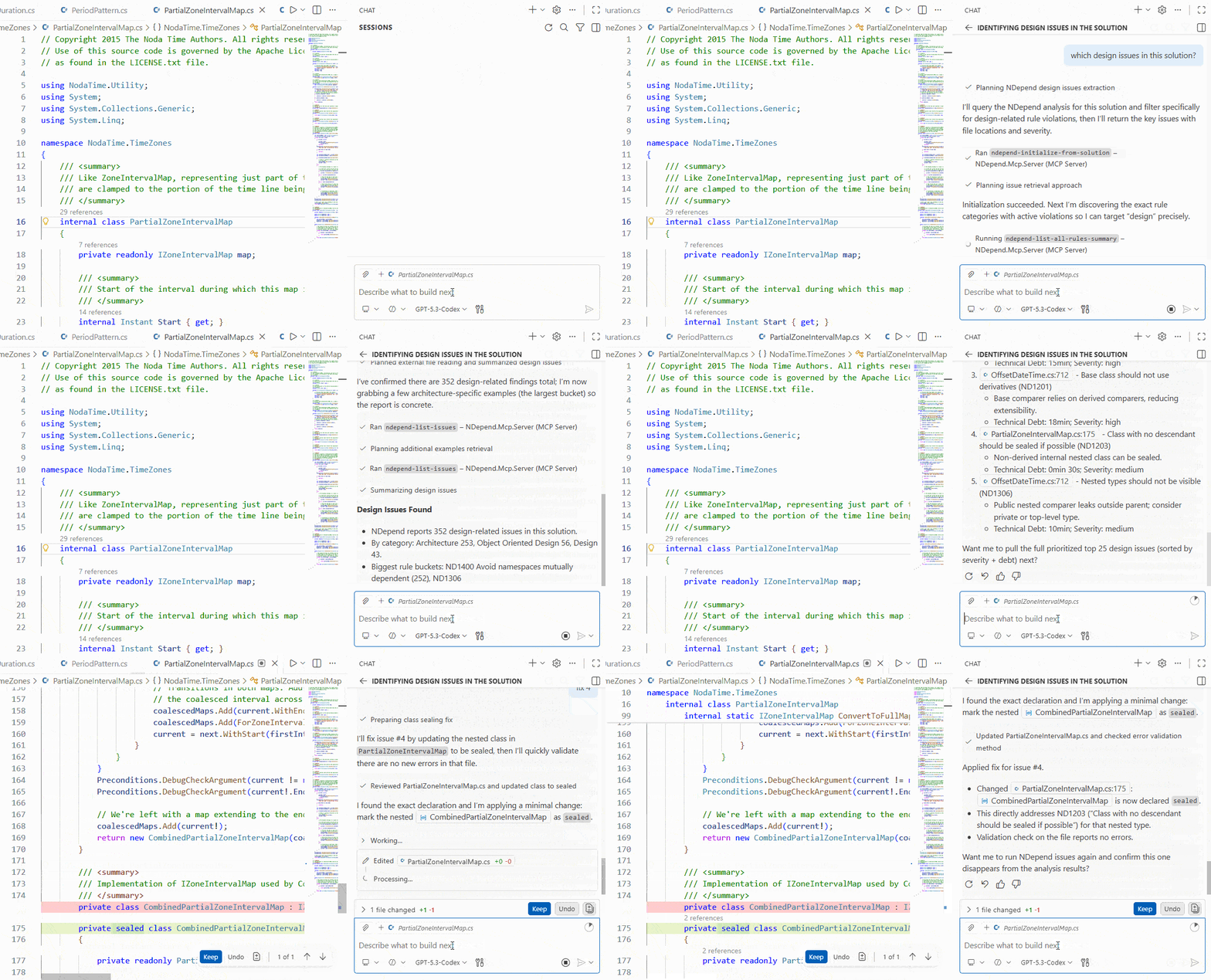
- AI Issue Fix: The AI assistant can use our MCP tools
ndepend-list-all-rules-summaryandndepend-list-issuesto list issues spotted by NDepend rules, Roslyn analyzers, and R# code inspections. The rules summary helps identify which rules match the user’s request—whether for code smells, security, architecture, SOLID design … issues. When the user wants to fix one or more issues, the AI assistant can invoke thendepend-get-issue-details-to-fix-ittool to fetch detailed diagnostics. The best part: all explanations and fix guidelines previously given to humans can now be fed to GitHub Copilot to automatically resolve the issues.
- Code Query and Rule Generation: NDepend’s core is querying code via C# LINQ and the NDepend.API. LLMs often hallucinate when generating queries, so we built
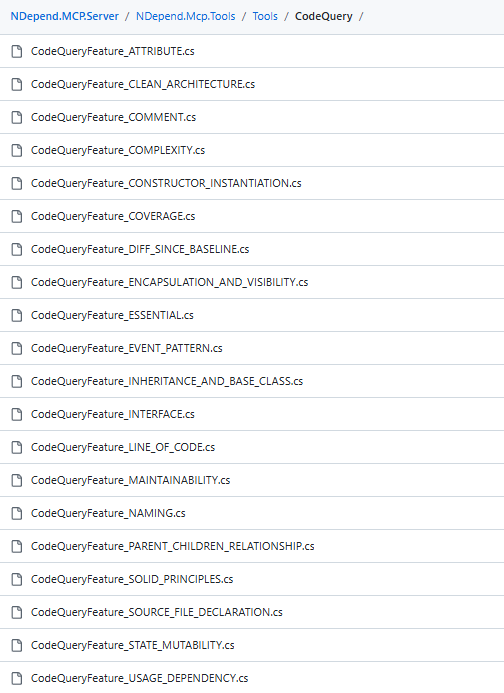
ndepend-gen-code-query-and-rule. It lets the LLM pick from 25 API features, then provides detailed prompts for each, effectively turning the LLM into an expert. The result works remarkably well and is a game changer for users.
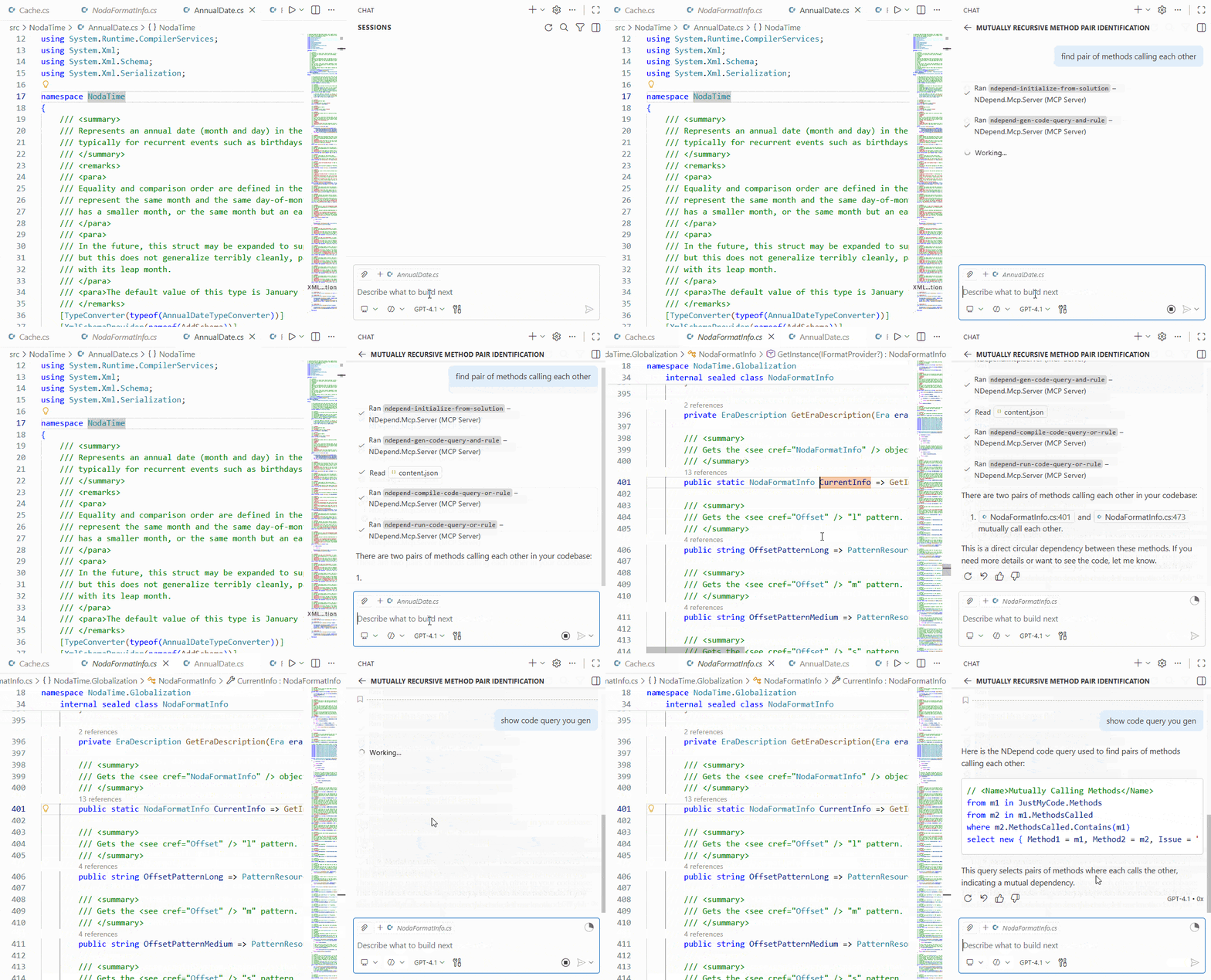
Notice the pattern: let the LLM select from multiple prompts based on the context, and provide only the chosen subset. This saves tokens and helps the LLM focus. It’s a recurring strategy. For example, imagine an agent drafting emails: first, it determines the category—sales, marketing, support, etc.—then, using the prompt for that category, it becomes an expert at crafting the response.
Interestingly, the detailed prompts we provide to the LLM for each feature also serve as excellent documentation for human users.
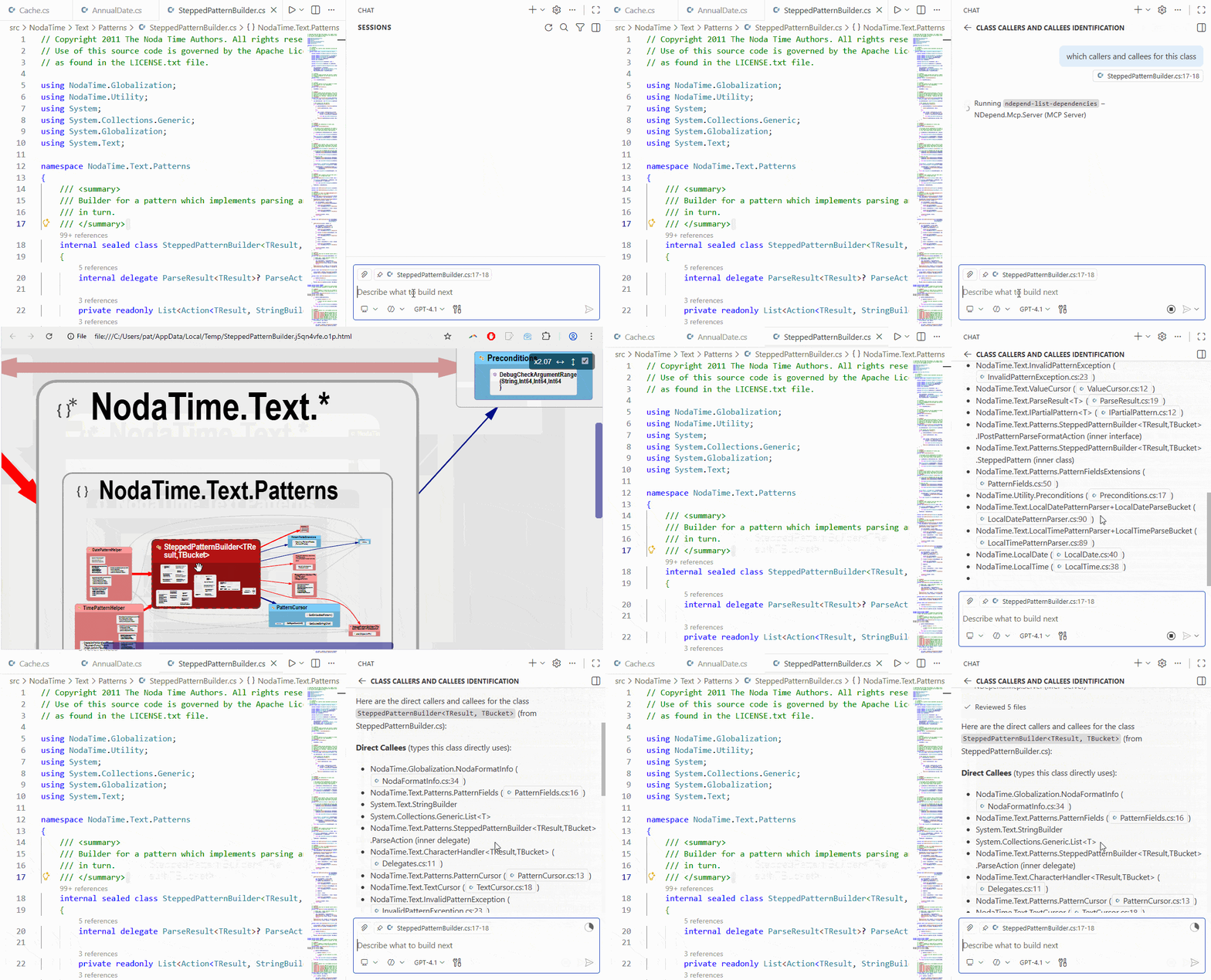
- Perform an Action: MCP tools can also be designed to execute actions. For example, our server provides
ndepend-list-dependencies, which generates an SVG dependency graph and opens it in the browser, while also returning the lists of callers and callees.. Another tool,ndepend-diff-sources, compares a source file’s current content against its baseline using the configured source comparison tool.
Designing MCPs for Minimal Token Usage
Before diving into the code, one more section—arguably the most important. By now, you know how MCP works: at some point, a prompt is built combining the user request with all registered MCP servers and their tool descriptions and parameters.
With many tools and large prompts, each request can consume a lot of tokens—and even cause decision paralysis for the LLM. More tools create semantic overlap—similar names, slightly different parameters, overlapping responsibilities. The LLM starts guessing, and guessing leads to mistakes.
MCP isn’t about exposing your entire SDK; it’s about exposing capabilities. For strategies, see Reducing Tokens in MCPs on the leanmcp website. Limiting the number of tools is the first step. The sweet spot isn’t 50 tools—it’s 10–20 well-designed, high-level tools. The NDepend MCP Server provides 14 focused tools, each addressing a distinct use case.
A secondary effective approach is to paginate the tool’s results, allowing the LLM to decide whether it needs just one page or multiple pages. We’ll cover how to implement this shortly.
Also, keep in mind that you can monitor token usage directly from the VSCode Copilot Chat window.

Anatomy of an MCP Tool in C#
If you’ve made it this far, you now have a solid understanding of what an MCP Server is, how it works, and why you might want to create one for your business. Let’s finally put it all into C# code.
Reference the ModelContextProtocol NuGet package and eventually some log packages. See our .csproj files:
Fine grained logs is even more important when non-repeatable LLMs are involved.
Let’s walk through the ndepend-search-code-metrics source code. Check out the comments alongside the code below:
|
1 2 3 4 5 6 7 8 9 10 11 12 13 14 15 16 17 18 19 20 21 22 23 24 25 26 27 28 29 30 31 32 33 34 35 36 37 38 39 40 41 42 43 44 45 46 47 48 49 50 51 52 53 54 55 56 57 58 59 60 61 62 63 64 65 66 67 68 69 70 71 72 73 74 75 76 77 78 79 80 81 82 83 84 85 86 87 88 89 90 91 92 93 94 95 96 97 98 99 100 101 102 103 104 105 106 107 108 109 110 111 112 113 114 115 116 117 118 119 120 121 122 123 124 125 126 127 128 129 130 131 132 133 134 135 136 137 138 139 140 141 142 143 144 145 146 147 148 149 150 151 152 153 154 155 156 157 158 |
[McpServerToolType] // class hosting MCP tool must have this attribute public static class MetricTools { // A MCP tool is declared as a 'public static async' method tagged with this attribute [McpServerTool(Name = "ndepend-search-code-metrics", // Set to true of running the tool multiple times with the same input will always // produce the same result and will not cause unintended side effects. // If an NDepend analysis is ran, the metric tool might returns different result. Idempotent = false, // Set to true if the tool does not modify the environment. ReadOnly = true, // Set to true if the tool performs irreversible changes. Destructive = false, // Set to true if the tool depends on dynamic or unpredictable sources, // like web searches. OpenWorld = false), Description( $""" Enter your tool description here. You can start by generating it with an LLM, refine it using your own expertise, and then have the LLM shorten it as much as possible without losing any essential information. We found out that C# 11 raw strings literals are particularly well-suited for declaring prompts especially if you need {constant_interpolated_string}. """)] // Tool decl public static async Task<ListMetricsPaginatedResult> SearchCodeMetricsTool( // Injected service and logger. // See NDepend.Mcp.Tools/Services/ServiceExtensions.cs // for custom service injection. INDependService service, // See NDepend.Mcp.StdioServer/NDepend.Mcp.Server/McpServerBootstrapBase.cs // that contains the reusable code to declare and inject logger. ILogger<MetricToolsLog> logger, // Parameters related to pagination. // Each item returned is a code element with its metrics. // Since items are lightweight MAX_PAGE_SIZE is set to 100. // See below the code to handle pagination. [Description("Cursor for pagination; `0` starts from the beginning.")] int cursor, [Description( $"Max number of code elements per page (= {MAX_PAGE_SIZE}) to avoid LLM prompt overflow.")] int pageSize, // ... // Here we skip filter parameters, // to just illustrate the threshold parameters. // ... [Description( $""" The name of the metric used to filter code elements by their metric values. Possible values are `{CodeMetricHelpers.METRIC_LOC}`, `{CodeMetricHelpers.METRIC_CC}`, `{CodeMetricHelpers.METRIC_MI}`, {CodeMetricHelpers.METRIC_HV}`, `{CodeMetricHelpers.METRIC_COMMENT}` and `{CodeMetricHelpers.METRIC_PERCENT_COVERAGE}`. """)] string? thresholdMetric, [Description($""" The direction of the threshold comparison. Possible values are null, `{GREATER_THAN_OR_EQUALS}`, or `{LOWER_THAN_OR_EQUALS}`. """)] string? thresholdGreaterLower, // Here, we explain to the LLM which metric values are considered good // and which are considered bad. [Description( $""" The threshold used to flag code elements for a selected metric. Here are values indicating potentially problematic code. **All Code Elements:** - `{CodeMetricHelpers.METRIC_MI}` (`{CodeMetricHelpers.METRIC_MI_ACRONYM}`) < 50 ? Poor maintainability - `{CodeMetricHelpers.METRIC_PERCENT_COVERAGE}` (`{CodeMetricHelpers.METRIC_PERCENT_COVERAGE_ACRONYM}`) < 90% ? Insufficient testing **Methods (`{CodeElementKindHelpers.KIND_METHOD}`):** - `{CodeMetricHelpers.METRIC_LOC}` (`{CodeMetricHelpers.METRIC_LOC_ACRONYM}`) > 50 ? Too long, consider splitting - `{CodeMetricHelpers.METRIC_CC}` (`{CodeMetricHelpers.METRIC_CC_ACRONYM}`) > 20 ? Too complex, hard to test - `{CodeMetricHelpers.METRIC_HV}` (`{CodeMetricHelpers.METRIC_HV_ACRONYM}`) > 600 ? High cognitive load **Types/Classes (`{CodeElementKindHelpers.KIND_TYPE}`):** - `{CodeMetricHelpers.METRIC_LOC}` (`{CodeMetricHelpers.METRIC_LOC_ACRONYM}`) > 400 ? Too large, violates SRP - `{CodeMetricHelpers.METRIC_CC}` (`{CodeMetricHelpers.METRIC_CC_ACRONYM}`) > 200 ? Too many branches - `{CodeMetricHelpers.METRIC_HV}` (`{CodeMetricHelpers.METRIC_HV_ACRONYM}`) > 8000 ? Overly complex """)] ulong? thresholdValue, // Finally, the MCP package gives the AI assistant an opportunity // to cancel the tool’s execution CancellationToken cancellationToken) { // Better log all tool calls and parameters logger.LogInformation( $""" {LogHelpers.TOOL_LOG_SEPARATOR} Invoking {TOOL_SEARCH_CODE_METRICS_NAME} with arguments: cursor= `{cursor}` pageSize= `{pageSize}` currentOrBaseline= `{currentOrBaseline}` filterCodeElementChangeStatus= `{filterCodeElementChangeStatus ?? "<default>"}` filterCodeElementKinds: `{filterCodeElementKinds.Aggregate("', '")}` filterFileName: `{filterFileName ?? "<any>"}` filterSimpleNamePattern: `{filterSimpleNamePattern ?? "<any>"}` filterParentNamePattern: `{filterParentNamePattern ?? "<any>"}` filterProjectName: `{filterProjectName ?? "<any>"}` metricNames: `{metricNames.Aggregate("', '")}` thresholdMetric: `{thresholdMetric ?? "<any>"}` thresholdGreaterLower: `{thresholdGreaterLower ?? "<any>"}` thresholdValue: `{(thresholdValue != null ? thresholdValue.Value.ToString() : "<any>")}` """); // Our MCP server requires an initialization phase. // Every tool prompt begins by instructing the LLM // to first call the tool `ndeepend-initialize-from-solution`. // // The description of `ndepend-initialize-from-solution` // also informs the AI assistant that only a single instance of // our MCP server should be created and reused. // // At any wrong tool call, you can still guide the LLM by // throwing an McpException with a clear, informative message. if (!service.IsInitialized(out Session session)) { logger.LogErrorAndThrow(Constants.PROMPT_CALL_INITIALIZE); } return await Task.Run(() => { // ... // Here code to apply filter and threshold parameters // to end up with a list of code containers and their metric. // ... // Select metricsInfo CodeMetric metrics = CodeMetricHelpers.GetCodeMetrics(logger, metricNames); var metricsInfo = codeContainers.Select(cc => new MetricInfo(cc, metrics, filterFileName)).ToList(); // Here we call our generic pagination method // that we (and you) can reuse across tools that need pagination. // NDepend.Mcp.Tools/Tools/Common/PaginatedResult.cs var paginatedResult = PaginatedResult.Build( logger, metricsInfo, cursor, pageSize, MAX_PAGE_SIZE, out var paginatedMetricsInfo); // We return a class deriving from PaginatedResult // NDepend.Mcp.Tools/Tools/Metric/ListMetricsPaginatedResult.cs return new ListMetricsPaginatedResult(paginatedMetricsInfo, paginatedResult); }, cancellationToken); |
Note that in the tool prompt, you can also explain how to present the results. In our case, features like single-click navigation to code elements and indexed lists provide significant value, allowing the user to reference items into further requests, simply by their index.
MCP Tool Parameters
Keep parameters simple. Use primitive types whenever possible—booleans, integers, and strings. Don’t force the LLM to guess complex argument values.
We’ve noticed that for empty strings, LLMs sometimes input null, sometimes an empty string, and sometimes even the literal string "null". So we created an IsValid() method to handle all these cases gracefully.
We deliberately avoid reusing records or tuples across multiple tool arguments. This simplifies LLM reasoning at the cost of slightly higher token consumption—a worthwhile trade-off.
As we saw above, each argument includes a description to guide the LLM toward the most meaningful value.
Some arguments, like the thresholdMetric, require a fixed set of values. Instead of defining public C# enums or flagged enumerations, we enumerate possible string values directly in the argument description. Enums get serialized to strings at the protocol boundary anyway, and models work better with semantic strings. Again, we’re optimizing for easier reasoning.
|
1 2 3 4 5 6 7 8 |
[Description( $""" The name of the metric used to filter code elements by their metric values. Possible values are `{CodeMetricHelpers.METRIC_LOC}`, `{CodeMetricHelpers.METRIC_CC}`, `{CodeMetricHelpers.METRIC_MI}`, {CodeMetricHelpers.METRIC_HV}`, `{CodeMetricHelpers.METRIC_COMMENT}` and `{CodeMetricHelpers.METRIC_PERCENT_COVERAGE}`. """)] string? thresholdMetric, |
Finally, the best part of MCP tool parameters is their flexibility: if you need to change the parameter list in a future version, it won’t break any caller—the LLM adapts automatically.
Register Your MCP Server with VS 2026 and VS Code
Visual Studio 2026 and VS Code let’s register an MCP server this way:
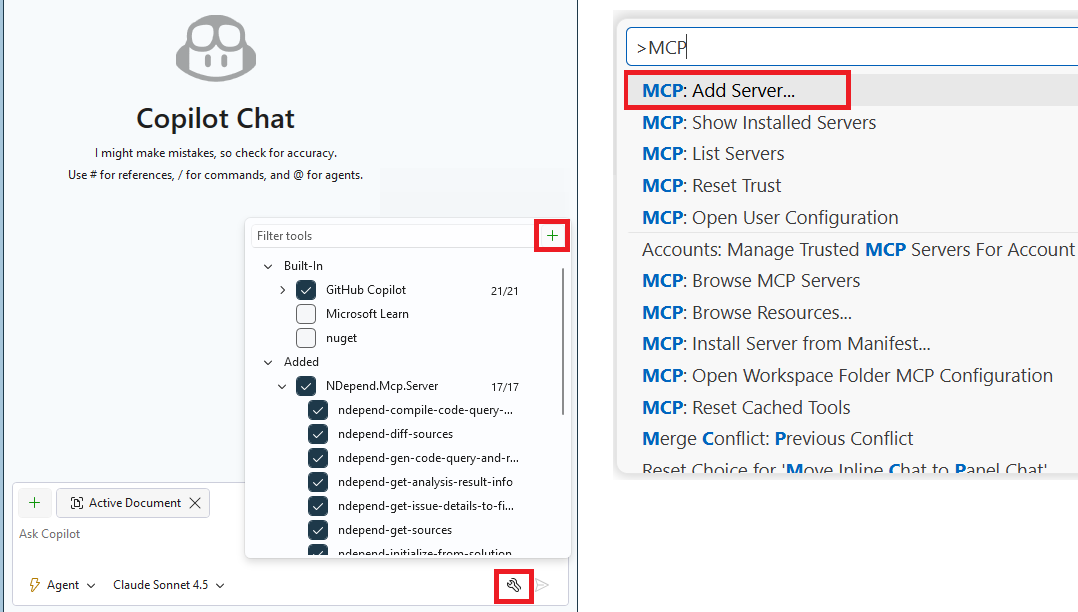
This will add to an mcp.json or .mcp.json file this configuration (for stdio):
|
1 2 3 4 5 6 7 8 9 10 |
{ "inputs": [], "servers": { "NDepend.Mcp.Server": { "type": "stdio", "command": "%your-ndp-mcp-svr-dir%\\\artifacts\\bin\\NDepend.Mcp.StdioServer\\Debug\\net10.0\\NDepend.Mcp.StdioServer.exe", "env": {} } } } |
or for HTTP SSE
|
1 2 3 4 5 6 7 8 9 |
{ "inputs": [], "servers": { "NDepend.Mcp.Server": { "url": "http://localhost:3001/sse", "type": "sse" } } } |
Github Copilot MCP configuration file for Visual Studio 2026 or VSCode can be found here:
|
1 2 3 4 |
C:\Users\%usr%\AppData\Roaming\Code\User\mcp.json - Global configuration for all solutions [SOLUTIONDIR]\.vs\mcp.json - Visual Studio only, solution-specific, user-specific [SOLUTIONDIR]\.mcp.json - Solution-level, can be tracked in source control [SOLUTIONDIR]\.vscode\mcp.json - Supports both VS Code and Visual Studio |
Beware that if the same MCP server is listed in both a global configuration file and a solution-specific configuration file, Copilot treats them as separate servers, which can cause conflicts.
Testing your MCP Tools
During development, test your tool prompts with standard free models like Chat GPT 4. Remember, you don’t control which LLM your users will choose. If standard models work well with your prompts, premium models will likely perform even better.
Think of it like testing software on older hardware—if it runs smoothly there, it’ll excel on modern systems.
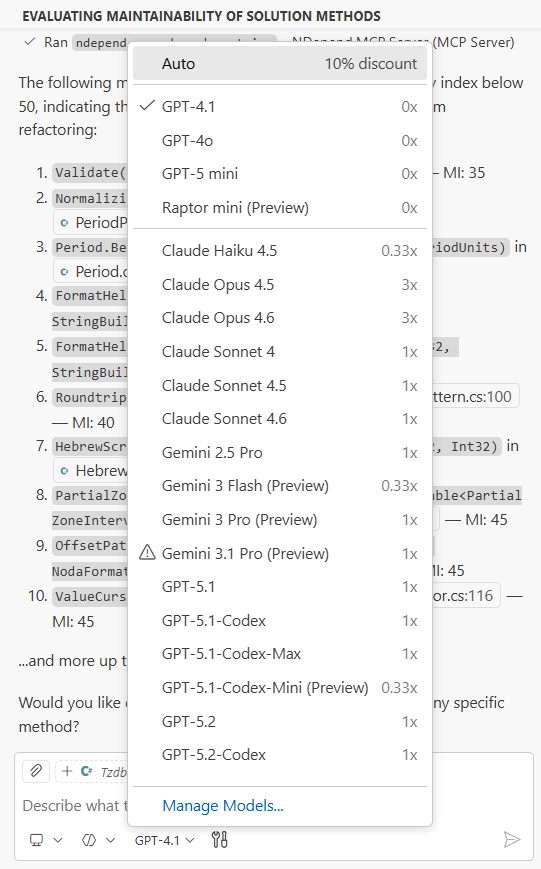
Better also use the Agent mode:
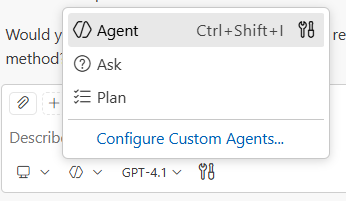
Test with VS Code Copilot Chat
We mention only Visual Studio 2026 and VS Code Copilot chat because it makes sense for a tool for C# developers. However the whole point of the MCP protocol is to make your server usable from any AI assistant so use your preferred one.
When you’re repeatedly testing MCP tools during development, we recommend using the VS Code Copilot chat window instead of the Visual Studio one. VS Code launches almost instantly, so you can start testing in just a second or two. Visual Studio 2026 has improved its startup time a lot compared to previous versions — but it still can’t compete with VS Code’s speed. Moreover:
- The VS Code Copilot chat displays token consumption as we saw earlier.
- You can expand a tool call to inspect both the input parameters and the results.
- A progress bar is included in the Copilot chat. We will explain how to harness the progress bar in your code later.
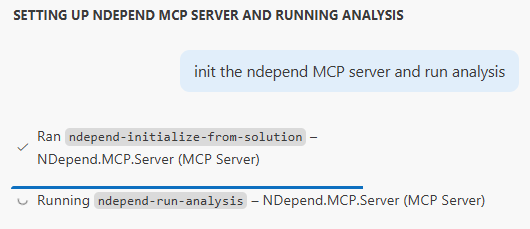
Interestingly, VS Code Copilot currently offers more features than the Visual Studio version. There’s no doubt that the Visual Studio Copilot Chat will be improved in the near future.
Test HTTP Server Locally
To test your MCP server’s HTTP SSE locally, ensure it’s registered with your AI assistant using "url": "http://localhost:3001/sse" and "type": "sse", as shown above. If port 3001 is already in use, you can select a different one. Once your SSE executable is running, the AI assistant can communicate with it.
Debugging a tool
When you need to debug an MCP tool that’s still under development, the simplest approach is to temporarily add a Debugger.Launch() call in the tool’s code.
When the agent invokes the tool, the debugger prompt will appear, and you can select a Visual Studio instance to attach and step through the execution.
Tips for MCP Tool Responsiveness
Here are two tips to improve your MCP tool responsiveness.
Progress Bar
Use progress bars for long-running operations. The MCP protocol includes built-in progress reporting for tools that take time to complete—like our initialize or run analysis tools.
Currently, MCP tool progress bars are only supported in VS Code Copilot, not yet in Visual Studio Copilot.
The implementation is straightforward, look at our tool ndepend-run-analysis source here. Your MCP tool simply needs to define three parameters: the MCP server, request context, and cancellation token.
|
1 2 3 4 5 6 7 8 |
public static async Task<bool> RunAnalysisTool( INDependService service, ILogger<AnalyzeToolsLog> logger, McpServer server, RequestContext<CallToolRequestParams> context, CancellationToken cancellationToken) { |
Then call our GetReportProgressProc() method (source here), which returns a progress delegate. Finally, invoke this delegate from your code with the progress percentage within [0,100] whenever the progress percentage updates.
|
1 2 3 4 |
// Show user analysis progress Action<int>? reportProgressProc = McpProgressHelpers.GetReportProgressProc( server, context, cancellationToken); |
Compute asynchronously while the LLM is thinking
Return early and compute asynchronously. Don’t wait for all state to be computed before returning from your long-running tool. For example, our initialization tool returns as soon as the analysis snapshot loads. Baseline and issue computations then continue asynchronously in the background. The code is in NDepend.Mcp.Tools/Services/Session.cs
|
1 2 3 4 5 6 7 8 9 10 11 12 13 14 15 16 17 18 19 20 21 22 23 24 25 |
public sealed class Session : IDisposable { internal Session(/*...*/) { // ... // Expensive compare-context and issue computations run asynchronously. // This makes use of the few seconds the AI agent spends chaining a tool // after Initialize, improving overall responsiveness. m_InitCompareContextTask = ComputeCompareContextAsync(); m_InitIssuesTask = m_InitCompareContextTask.ContinueWith(ComputeIssuesAsync).Unwrap(); } // ... internal ICompareContext CompareContext => m_InitCompareContextTask.GetAwaiter().GetResult(); internal ICodeBaseView JustMyCode => m_InitIssuesTask.GetAwaiter().GetResult().JustMyCode; internal IIssuesSet IssuesSet => m_InitIssuesTask.GetAwaiter().GetResult().IssuesSet; internal IIssuesSetDiff IssuesSetDiff => m_InitIssuesTask.GetAwaiter().GetResult().IssuesSetDiff; private readonly Task<ICompareContext> m_InitCompareContextTask; private readonly Task<IssuesResult> m_InitIssuesTask; } |
If subsequent MCP tools need this state, they simply await until computation finishes. This works well because Copilot typically takes a few seconds before invoking the next tool anyway—giving your background tasks time to complete.
This pattern keeps the agent responsive while still ensuring all necessary data is ready when needed.
Conclusion
You made it to the end — thanks for reading! We hope you found practical insights you can put to use.
If your product exposes an API, an MCP server can help guide LLMs to deliver more meaningful value to your users.
Comments:
Comments are closed.